How to dub a software tutorial or screen recording
In a screen recording the screen is the lesson and the voice points at it. A dub has to keep pointing at the right place, at the right moment, in another language.
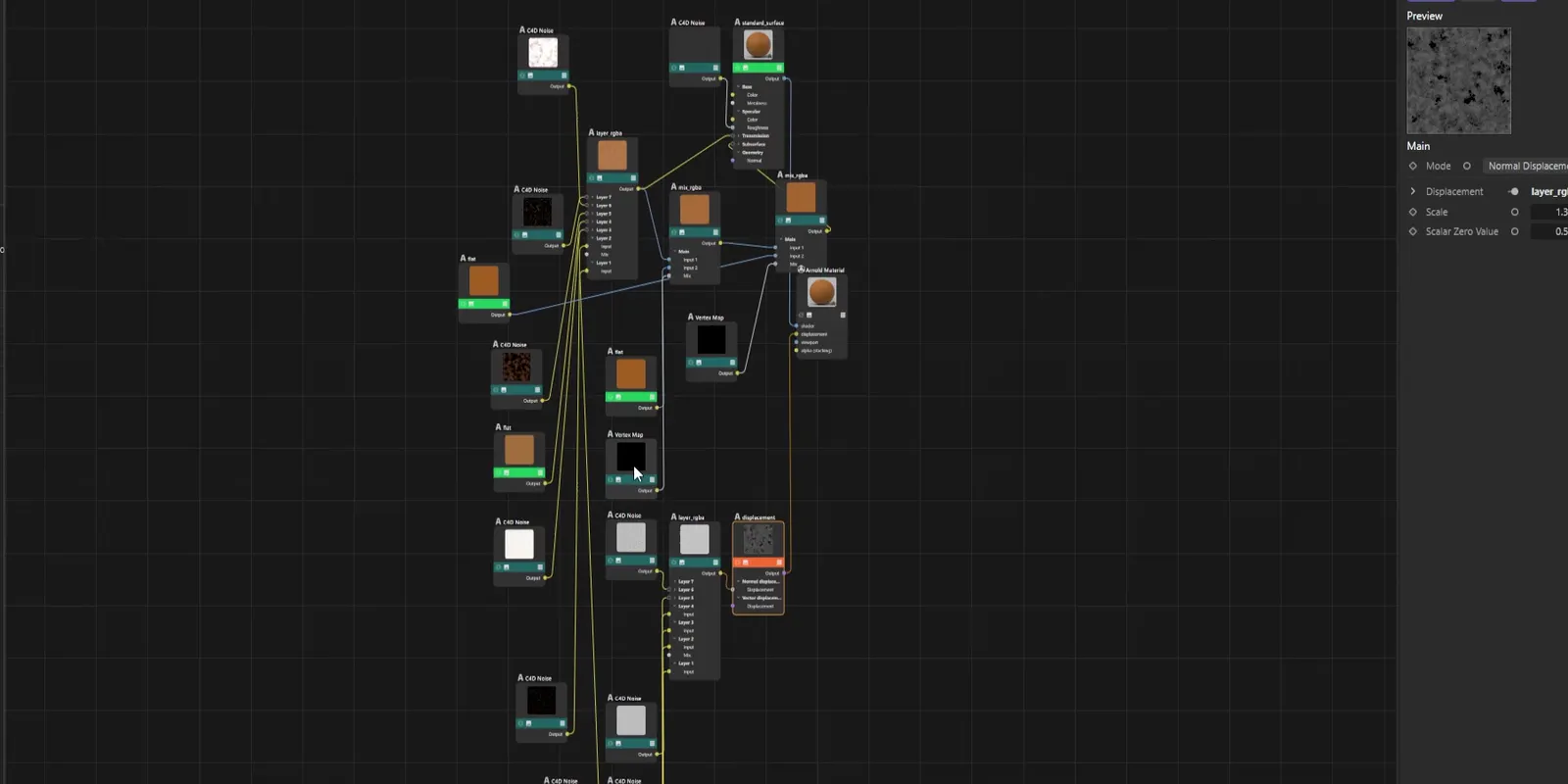
What a dubbed tutorial has to get right
A dubbed software tutorial works when three things survive the translation: the voice reaches each click when the cursor does, the pauses while something loads or renders stay where they were, and menus, buttons and tools are named as they appear on screen. Get those right and the viewer can follow along in their own copy of the software. Get them wrong and they hear "click Export" while the cursor is still crossing the screen.
Screen recordings are also among the easiest videos to dub well. The narrator is usually off screen, so there are no lips to match, and the original already has a clear rhythm: an action, an explanation, a result.
The voice has to reach the click with the cursor
In a talking-head video, a sentence that lands half a second late is a small flaw. In a tutorial it is a wrong instruction: the viewer looks for the button the voice names, and it is not highlighted yet, or it already was. Timing in a tutorial is part of the content, not polish on top of it.
DubForge was started by a 3D instructor who teaches Cinema 4D. When he first dubbed his own lessons, the voice was fine and the timing was not: sentences rushed, pauses vanished, and "turn it off" came before the cursor got there. That is why DubForge places each thought on the video's own clock, so the voice reaches the click when the cursor does. The demo plays the first minute of a dubbed Cinema 4D lesson.
Whatever tool you use, test it on the moments that matter most: a click on a small control, a drag that starts and stops, a shortcut pressed while you name it. Watch those with the picture, because they are the ones a viewer copies.
Waits while something loads are part of the lesson
Tutorials have silences the speaker never planned as pauses: a progress bar, a render that takes a few seconds, a page that loads, a build that compiles. During those seconds the viewer watches the screen and learns what normal looks like, including how long it takes.
A dub can damage those waits in two ways:
- Moving speech into the wait makes the voice describe a result before it appears on screen.
- Shortening the wait to make room for a longer sentence elsewhere tells the viewer the step is quicker than it is, and pulls every later sentence ahead of the picture.
Keep each wait where it was, at the same length, and let the next sentence start when the screen is ready. Why pauses matter in dubbing goes deeper into this.
A silence in the original should be a silence in the dub: the same length, in the same place.
Name menus, buttons and tools as the screen shows them
Viewers look for the word they hear. If your recording shows a menu called Export and the dub says a translated word for it, the viewer searches for a menu that is not on their screen. The rule for a tutorial dub is simple: say what the screen shows.
- Menu names, button labels, tool names and panel titles stay exactly as they appear in the recording.
- Keyboard shortcuts are said as they are pressed, such as Ctrl+Z.
- File names, layer names and values typed into a field stay as they were typed.
- A term you explain can be translated in the explanation, as long as the on-screen name is said too.
Many programs are used with an English interface by people who speak other languages, and many also ship a translated interface. Dub to the interface in your recording, since that is what the viewer sees. If you know your new audience often runs a translated version, say both names the first time a control appears.
Check every name in review. In DubForge's editor each segment shows the original next to the translation, so a renamed menu is easy to spot. Edit the translation and regenerate the segment: the whole thought is redone in the same voice, rather than one word patched in.
Off-screen narrators, one voice or several
Most screen recordings have a narrator who never appears, which is where AI dubbing fits best: with no face on screen, there are no lips to match. DubForge is not built for lip sync, and a tutorial does not need it. If your recording has a webcam view in a corner, the lips there will not match the new language; for the dubbed version you might make it smaller or leave it out. Lip sync or voice timing explains the difference.
Some tutorials have more than one voice: a host and a guest, two developers working through a problem, a webinar with questions at the end. When you create a project you say how many people speak (one, two, three or more, or not sure), and each person is dubbed in their own voice and speaks when they spoke. Every voice other than yours needs its owner's written permission, as the voice guidelines explain.
Music and background sound are separated from the speech and mixed back under the dub, if you choose to keep them. They also come as a download of their own.
Use the alerts to find rushed lines and shortened pauses
The 5:01 demo lesson has 99 segments in the editor, and a long tutorial has many more. Listening to every one with the same care takes a while, so DubForge's editor points you at the ones most likely to need you.
The engine flags two things: a pause that came out shorter than the original, and a line that runs faster than the original. One click shows only those lines. In a tutorial they are worth checking first, because a shortened pause is often a wait that got squeezed, and a rushed line is often a sentence whose translation came out longer than the time it had.
To fix a rushed line, make the translation say the same thing in fewer or plainer words, then regenerate the segment. A shortened pause often means the sentence before it ran long in the new language, so tighten that one. Every version is kept and going back is free. Regenerating is free up to a quarter of the video's length; after that, a fix uses one credit per second of the segment, and each request counts at least 15 seconds.
Before you publish the dubbed tutorial
- Play every click on a small control with the picture, and check that the voice names it as the cursor reaches it.
- Watch each wait: progress bars, renders, page loads. The silence should be as long as in the original.
- Compare every menu, button and tool name in the dub with the screen.
- Check numbers, values and shortcuts against what is typed.
- Go through every alert in the editor: fix the line, or decide it is fine as it is.
- Read the subtitles once. They come timed to the dub, in the original and the dubbed language, as SRT and VTT.
For a whole series, the online courses guide covers dubbing lesson by lesson and what it costs, and how to review an AI dub has the full review routine.
Questions
Do I need to re-record a tutorial to dub it?
No. The dub is made from the recording you already have: upload the file as MP4, MOV, M4A or WAV, and the voice is taken from your speech in it.
Does dubbing translate the text on screen?
No. A dub changes the voice, not the picture, so menus, labels and text in the recording stay as they are. That is why the dub should name them exactly as they appear.
How do I keep a dubbed voice in sync with mouse clicks?
Place each translated thought where the original one was said, on the video's own clock, and keep every pause the same length. Then check the clicks on small controls with the picture before you publish.
What happens to background music in a dubbed screen recording?
In DubForge, music and background sound are separated from the speech and mixed back under the dub, if you choose to keep them. You can also download them alone as a WAV file.