How to translate and dub an online course, lesson by lesson
Your students watch your screen and listen to you at the same time. A dub lets them keep doing both in another language. Here is how to dub a course one lesson at a time, keep the pauses that do the teaching, and know the cost before you start.
How to dub an online course
To dub an online course, treat each lesson as its own video: upload the lesson file, choose the language it is spoken in and the language to dub into, review the dub with the picture, then download the dubbed video and its subtitles. Repeat for the next lesson. Along the way, protect two things: the pauses where you demonstrate something, and the names and numbers on screen.
Lessons suit a dub better than most videos. In a course the student's eyes are on the screen, following your cursor, a slider or a line of code. Subtitles ask them to read at the bottom of the frame while the lesson happens in the middle. A dub lets them watch the work and hear the explanation, the way your original students do. If you are still choosing, see subtitles or dubbing.
- Export the lesson fileOne file per lesson, as MP4, MOV, M4A or WAV. DubForge takes a file, not a YouTube link, because a link does not show that you hold the rights.
- Choose languages and voicesPick the language spoken, the language to dub into, how many people speak, and whether to keep the music and background.
- Check the costThe cost in credits shows before you start. Credits are held while the dub runs and charged when it is done; if a dub fails, they come back on their own.
- Review in the editorPlay the dub against the picture, fix the lines that need it, and regenerate them.
- Download and publishTake the dubbed MP4 or the audio, plus subtitles timed to the dub, to your course platform.
Work one lesson at a time
A course is already cut into lessons, so keep that cut. One file per lesson gives you a project you can review in one sitting, a clear cost per lesson, and a way to fix lesson 7 without touching lesson 3. It also keeps each file inside your plan's video-length limit.
| Plan | Longest video | Credits |
|---|---|---|
| Creator | 20 minutes | 900 a month (15 minutes) |
| Pro | 1 hour | 2,700 a month (45 minutes) |
| Studio | 3 hours | 8,400 a month (140 minutes) |
| Credits without a plan | 20 minutes | 1,000, valid 12 months |
If a recording runs longer than your plan allows, such as a live session or a workshop, cut it at a natural break, like the end of a topic, rather than in the middle of a sentence. Each part then becomes a lesson of its own.
Plans run several dubs at once (2 on Creator, 3 on Pro, 5 on Studio), so you can start a few lessons and review them in order. Download what you need as you go: Creator keeps projects 30 days and Pro 90 days. Before the first upload, a few minutes spent preparing the video saves fixes later.
Keep the demonstration pauses
Lessons are full of silence that teaches. You stop talking while you sculpt a shape, wait for a render to finish, or let the student look at a result before you explain it. Those pauses tell the viewer where to look. A dub that loses them turns a lesson into a lecture laid over moving pictures.
The same idea rarely takes the same time in two languages. A careless dub handles the difference by speeding the voice up, or by finishing early and leaving a long gap, and either way the pause you made on purpose moves or shrinks. DubForge places each thought on the video's own clock: a silence in the original is a silence in the dub, and the voice reaches the click when the cursor does. Why pauses matter in dubbing goes into the details.
When you review a lesson, watch the demonstrations, not only the talking. A pause that came out shorter is easy to miss when you only listen.
Review each lesson in the editor
Review a dubbed lesson the way a student will watch it: with the picture, from start to end. The demo lesson, a Cinema 4D lesson 5:01 long, has 99 segments in the editor, so plan a sitting per lesson rather than a glance.
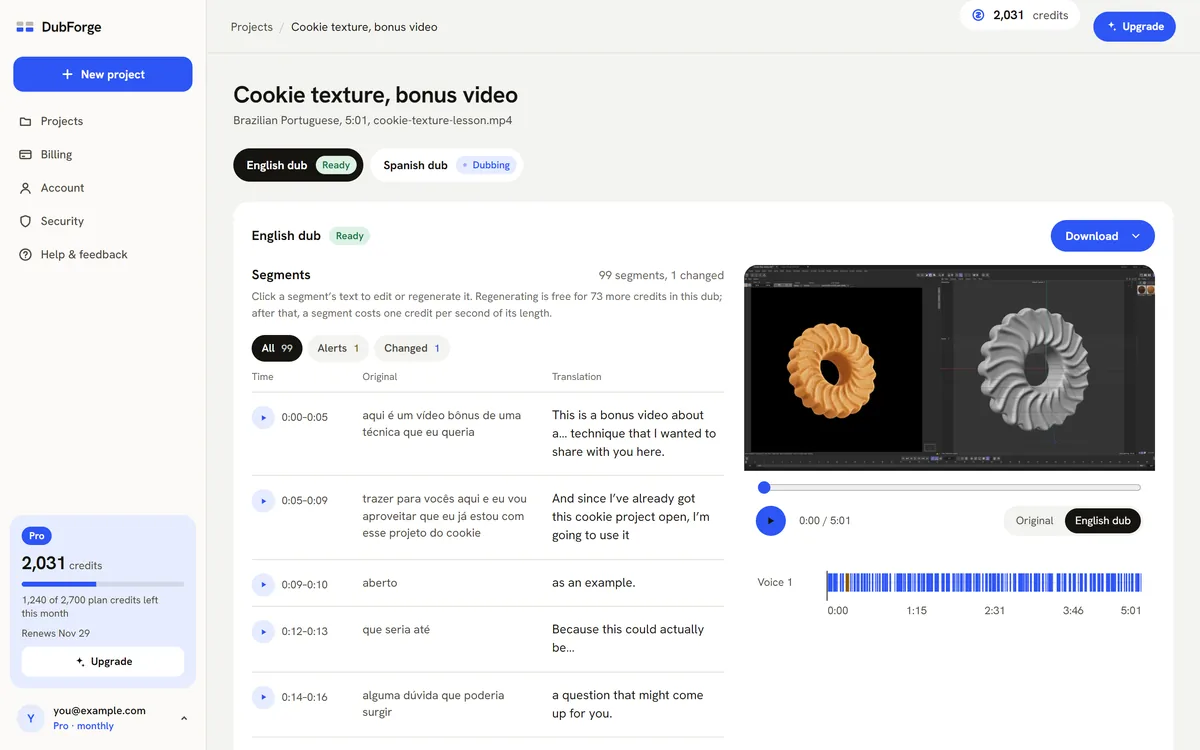
- Product names, menu items and shortcuts say what the screen shows.
- Numbers, units and values match what you type or set.
- Each sentence lands when the screen does what it describes.
- A term you defined in an earlier lesson is translated the same way in this one.
Each segment shows the original next to the translation. Change the transcript or the translation and the whole segment is regenerated in the same voice, never one word patched in. The engine also flags a pause that came out shorter than yours, or a line that runs faster than the original, and one click shows only those lines. Every version is kept, and going back to an earlier one is free. The full routine is in how to review an AI dub.
Regenerating is free up to a quarter of the video's length: for a 10-minute lesson, that is 150 seconds of regenerated segments. After that, a fix uses one credit per second of the segment. Each request counts at least 15 seconds, so regenerate the lines you edited together. A segment the engine flagged with an alert gets one free fix. If your course teaches software, dubbing software tutorials covers menu names and clicks in more detail.
Subtitles and files for your course platform
Each dub gives you the dubbed video (MP4), the full mix (WAV or MP3), the voice alone (WAV), and the music and background alone (WAV). Subtitles come in the original and the dubbed language, as SRT and VTT files, timed to the dub, so the captions follow what the new voice says and when it says it.
Course platforms commonly accept SRT or VTT caption files; check which one yours takes. If your platform plays one audio track per video, upload the dubbed MP4 as its own version of the course, with the dubbed-language subtitles for students who like to read along. Subtitles in any other language use 6 credits per minute of video.
What a course costs in credits
DubForge counts in credits: one credit dubs one second of video in one language, rounded up to the next second. Each language you dub into is its own dub. That makes a course easy to price before you start:
- A 10-minute lesson in one language: 600 seconds, so 600 credits.
- A lesson of 7 minutes 30.4 seconds: rounded up to 451 seconds, so 451 credits.
- The demo lesson, 5:01 long (301.2 seconds): rounded up to 302 seconds, so 302 credits.
- A course of 12 lessons of 10 minutes each: 12 × 600 = 7,200 credits in one language, or 14,400 in two.
Now match it to a plan. Creator's 900 credits a month cover one of those 10-minute lessons, with 300 left over. Pro's 2,700 cover four lessons a month (2,400 credits), so the 12-lesson course takes three months. Studio's 8,400 cover the whole course in one month, with 1,200 left. Unused plan credits roll over, up to twice the monthly amount, and each plan can add 1,000 extra credits: US$30 on Creator, US$23 on Pro, US$20 on Studio.
Without a plan, 1,000 credits cost US$35 and stay valid for 12 months, for videos up to 20 minutes. To hear your own voice first, the free trial gives 30 credits once (30 seconds of dubbing), with every editor feature, for an account with a confirmed email and no card; the trial dub is watermarked and not for commercial use. The pricing page has every plan, and how much it costs to dub a video compares the options.
Co-instructors and guest voices
Each person speaking in a lesson is dubbed in their own voice and speaks when they spoke, so a co-taught lesson stays a conversation. When you create the project, say how many people speak: one, two, three or more, or not sure.
Dub only the voices you have the right to dub: your own, or voices whose owners gave you written permission. That includes a co-instructor, a guest expert and a student whose question was recorded in a live class. DubForge asks you to confirm it for each exact file, and a public figure's voice needs their written permission too. Ask while you plan the course, when it is easy; voice consent for AI dubbing covers what to ask for.
The terms also ask you to tell your audience that the dub was made with AI. A line in the course description, in the new language, does it.
Questions
Can I dub an online course into several languages?
Yes, where the language pairs are open. Each target language is its own dub with its own cost in credits, and DubForge opens each pair only after it passes listening tests; your account lists the pairs open today.
Do I have to record my voice before dubbing each lesson?
No. The voice is taken from each lesson file you upload, so there is nothing to record or train first, and every lesson is dubbed from your own speech in that file.
What file types can I upload for a course lesson?
MP4, MOV, M4A or WAV. A YouTube link is not accepted, so upload the lesson file itself; its real type, length and size are checked before anything is charged.
Can I sell a course I dubbed with AI?
Yes, if you hold the rights to the video and to every voice in it. The free trial's dub is watermarked and not for commercial use, so dub the lessons you sell on a plan or with credits bought without a plan.