How to review an AI dub before you publish it
An AI dub is a draft you approve. Here is a routine for checking one the way your viewer will hear it, and for fixing what you find without breaking what already works.
The review routine
To review an AI dub, watch it with the picture, not as audio alone, and start with the lines the tool flags. Then check names, menu terms and numbers, listen to how each sentence ends, and look for lines that repeat. Fix a problem by changing the words of the whole segment and generating it again, never by patching one word.
- Watch with the picturePlay the dub against the video, so you notice when a sentence arrives before the screen does what it describes.
- Start with the alertsGo first to the lines the engine flagged: they are the likeliest places for the timing to have slipped.
- Check the words that must be exactProduct names, menu items, numbers and shortcuts, against a list you made before uploading.
- Listen to the endingsEach sentence should finish cleanly, with its last sound intact, before the next one starts.
- Look for repeatsWhen the original says the same thing twice, the dub should not sound like a recording played twice.
- Fix whole segmentsEdit the transcript or the translation, regenerate the segment, and compare it with the version before.
Watch it with the picture
Audio alone hides the errors that matter most in a lesson. A sentence can sound perfect and still say "now click Render" a second before the cursor gets there, or keep talking about a result the render has not shown yet.
So review the way your viewer will watch: video and dub together, at normal speed. Pay most attention to the moments where the screen leads, such as a click, a menu opening, a value changing or a render finishing. Those are the moments a viewer uses to follow along.
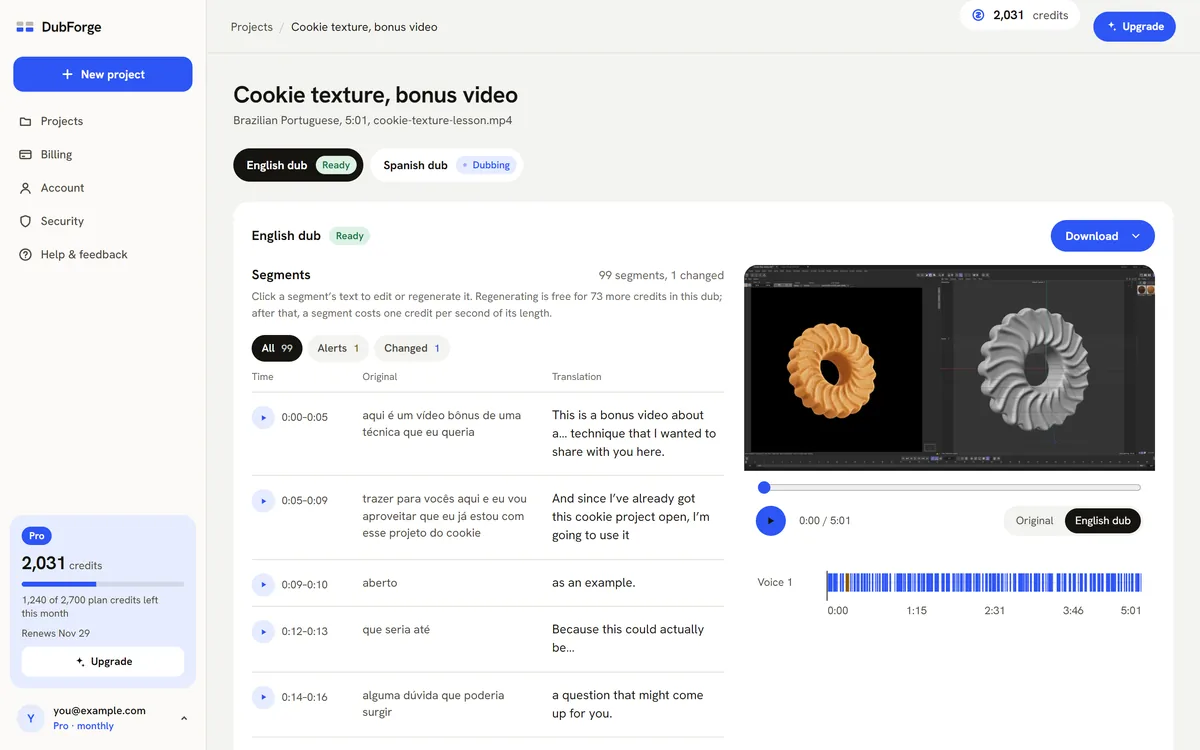
In DubForge's editor each voice has a lane on the video's clock, and you can play the original or the dub from any segment. Playing the same segment both ways is the simplest way to hear whether a pause survived the translation.
Start with the engine's alerts
A good dubbing tool tells you where to look. DubForge's engine flags two things: a pause that came out shorter than the original, and a line that runs faster than the original. One click shows only those lines.
Both are timing problems. A shorter pause means the next sentence starts early, so the voice can get ahead of the screen. A faster line often means the translation has more to say than the original had time for, and the voice had to hurry to fit it in.
For a line that runs fast, try a shorter wording that says the same thing, then regenerate. For a pause that came out short, watch what happens on screen during it. If the speaker was waiting for the software, the wait is part of the lesson, and the pause is worth keeping.
Alerts tell you where to start, not where to stop. After you have worked through them, watch the whole dub once at normal speed.
Check names, menu terms and numbers
Translation is where exact words go wrong. A menu item gets translated when it should stay as it appears on screen, a product name is spelled the way it sounds, a unit changes and the number with it. Speech recognition can also mishear a name before the translation even starts.
Keep the list of names, menu items and numbers you made while preparing the video, and tick each one as it comes up. Read the transcript as well as the translation: if the original was misheard, fix the transcript, so the meaning is right at the source.
Numbers deserve a second look: values typed into a field, version numbers, keyboard shortcuts, times on a timeline. A viewer who copies a value from your lesson will copy whatever the dub says.
Listen for clipped endings and repeated lines
Clipped endings
Listen to the last word of each sentence, especially before a pause. A dub can end a sentence a little too early and cut off its last sound, a final consonant or the tail of a vowel. Each one is small. Across a lesson, they make the voice sound chopped.
Lines that repeat
Teachers repeat themselves, often while they wait for the software. A dub that translates both lines the same way, in the same voice and the same delivery, can make the second one sound like the audio skipped back.
DubForge's demo lesson has one. At 3:14 the lesson repeats a line it had said five seconds earlier. The first version of the dub said "It'll take a little longer to think." both times. The fix gave the second one its own words, "The renderer needs a little more time.", by editing the translation of that segment and regenerating the whole segment. The full story is in dubbing a Cinema 4D lesson.
Not every repeat needs new words. Change the wording only where the two lines are close enough to sound like a glitch, and keep the meaning the same.
Fix the whole segment, never one word
When something is wrong, change the words and regenerate the segment: edit the transcript if the original was misheard, or the translation if the new language is wrong. In DubForge the whole thought is redone in the same voice. There is no way to patch one word in, and that is on purpose: a word spoken on its own rarely matches the pitch and pace of the words around it.
Every version is kept, and going back to an earlier one is free. Try a wording, compare it with the one before, and return to the first if it was better.
Fixes have a budget. Regenerating is free up to a quarter of the video's length; after that, a fix uses one credit per second of the segment, and each request counts at least 15 seconds, so redoing a six-second line alone uses 15 credits, and three six-second lines in one request use 18. On a 10-minute lesson, a quarter of the length is two and a half minutes. The plans and credits are on the pricing page.
When the list is done, check the subtitles too: they come in the original and the dubbed language, timed to the dub. Then watch it once more from start to finish and download it. Where it goes next is in publishing a dubbed video on YouTube.
Questions
Can I fix just one word in an AI dub?
In DubForge you change the word in the transcript or the translation, and the whole segment is regenerated in the same voice. A single word spliced into a sentence rarely matches the words around it.
Does regenerating a line in an AI dub cost extra?
In DubForge, regenerating is free up to a quarter of the video's length. After that, each fix uses one credit per second of the segments you regenerate, and each request counts at least 15 seconds. A segment the engine flagged with an alert regenerates once for free.
Can I go back to an earlier version of a dubbed line?
Yes. DubForge keeps every version of a segment, and going back to an earlier one is free.
Can I review a dub in a language I don't speak?
Partly. You can check timing, pauses, endings, names and numbers by watching with the picture and reading the subtitles. For the wording itself, ask someone who speaks the language to watch it once.