Lip sync or voice timing: what your dubbed video needs
Lip sync gets most of the attention in AI dubbing, but for most teaching videos it is not what makes a dub work. Here is the difference, and how to tell which one your video needs.
Lip sync and voice timing are different jobs
Lip sync changes the picture: the speaker's mouth is redrawn so it moves with the new words. Voice timing leaves the picture alone and places the new speech where the original was said, with its pauses, so it lines up with what happens on screen. Most videos where someone teaches on a screen need the second, and many never show a mouth at all.
They fix different mismatches. Lip sync fixes a mouth that moves while saying something else. Timing fixes a voice that says "now click Render" while the cursor is still on the other side of the screen.
| Lip sync | Voice timing | |
|---|---|---|
| What it changes | The picture of the speaker's mouth | When each line of the new speech is heard |
| What it matches | The mouth to the new words | The voice to the moment it was said, and to the screen |
| Where it matters | Close-ups, talking heads, scenes with actors | Tutorials, lessons, screen recordings, narration |
| When it is missing | The mouth says one thing, the voice another | The voice describes a step before the screen shows it |
In screen recordings, timing is what counts
In a screen recording, a software tutorial or a narrated lesson, there is no face to sync. The viewer is watching a cursor, a menu, a viewport. What they notice is whether the voice and the screen agree: the instruction arrives with the click, the explanation waits while the render finishes, the hesitation happens while the cursor searches.
If the timing is off, nothing else rescues the dub. The words can be right and the voice can be yours, and the lesson is still harder to follow than the original, because the viewer hears each step a moment before they can see it. Why pauses matter in dubbing goes through the ways a dub loses its timing.
If your viewer is watching the screen rather than your face, the thing your dub needs is timing.
When the face fills the frame
Lip sync matters more the larger the mouth is on screen. In a close-up interview, a talking-head video or a scene with actors, viewers notice a mouth that does not match the words, and it pulls them out of the video. In a small webcam corner over a screen recording, a mismatch is much less visible. In narration with no face, there is nothing to mismatch.
Lip sync is also a separate step from dubbing. It edits the picture of a real face, frame by frame, and it needs its own review. For a teaching video, that review would be spent on the smallest part of the frame, while the part the viewer is studying is the screen.
Where DubForge stands
DubForge does not do lip sync. It is built for timing: it dubs each person in their own voice and places each thought on the video's own clock, so a silence in the original is a silence in the dub and the voice reaches the click when the cursor does. The picture is not changed to match the voice; the voice is placed to match the picture.
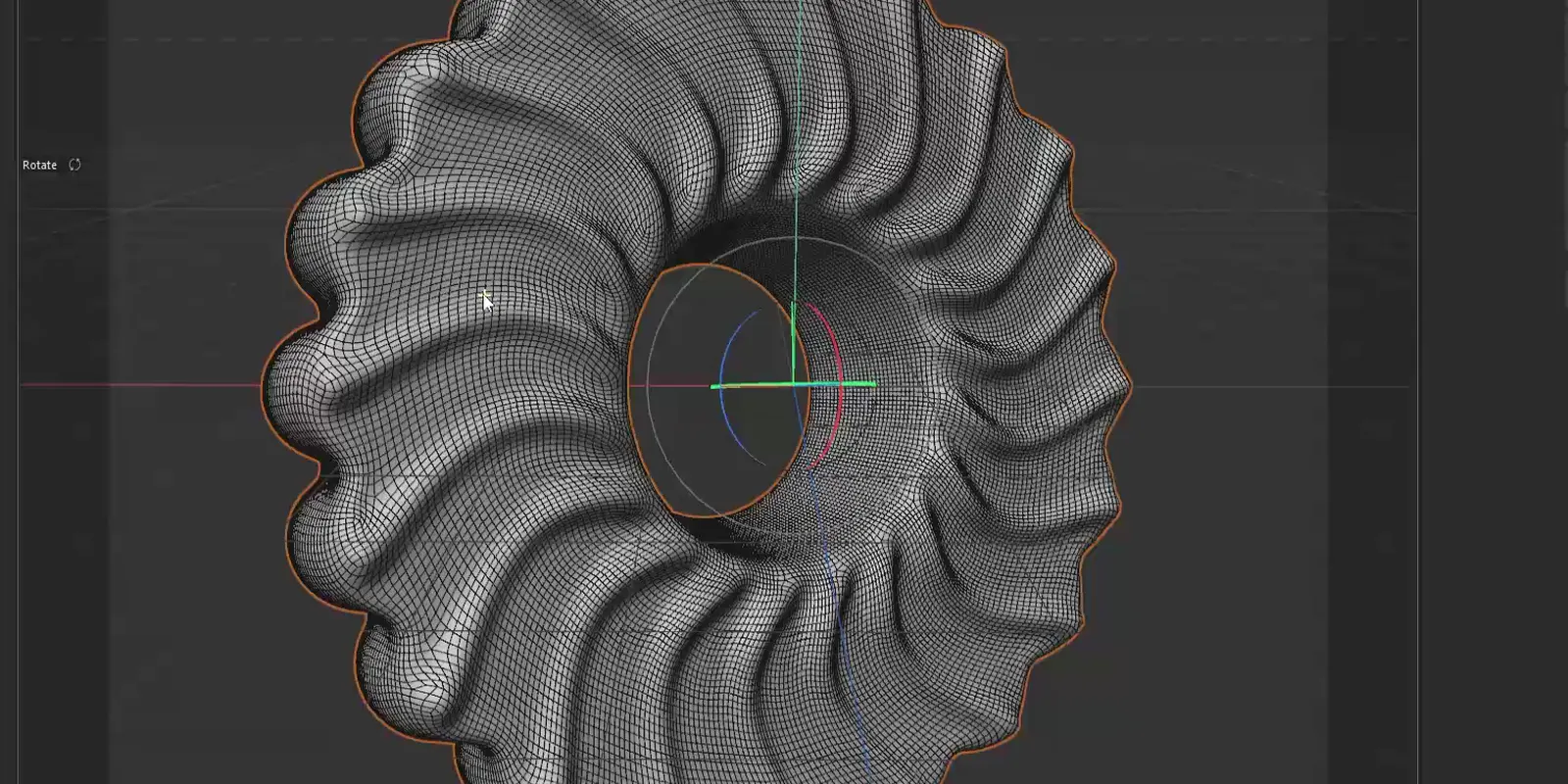
That choice comes from where it started. DubForge was started by a 3D instructor who teaches Cinema 4D and records his lessons in Portuguese. In a Cinema 4D lesson the viewer watches the viewport, and the problem worth solving was a voice that said "turn it off" before the cursor got there.
It is made for online courses, software tutorials and creators who teach on their own channel. If your videos are mostly a face in close-up, a tool built for lip sync will suit those videos better.
If your video opens with a talking-head intro
Many tutorials open with the instructor on camera for a minute, then switch to the screen. For that first minute you have three reasonable options:
- Keep the face small. On new recordings, put the camera in a corner over the screen, or open on the screen with your voice. A small face shows a mismatch much less than a full frame does.
- Accept it. A short intro where the mouth does not match, followed by a lesson where the voice lands on every click, may be a trade you are happy with. Watch the intro with the dub and decide whether it bothers you.
- Use subtitles for that part. In your video editor, keep the original audio for the intro with subtitles in the viewer's language, then switch to the dub when the screen recording starts.
The third option works with DubForge's downloads. Besides the dubbed video, you get the voice alone, the music and background alone, and subtitles in the original and the dubbed language as SRT and VTT files, timed to the dub. That is enough to rebuild the intro in your editor with your original voice and the dubbed-language subtitles; check that those subtitle lines sit where you speak. Subtitles or dubbing covers when each one works best.
Questions
Do I need lip sync for a screen recording?
No. There is no face to sync. What the viewer notices is whether the voice speaks each step when the screen shows it, so timing is the thing to check.
Does a small webcam corner need lip sync?
Usually not much. A small face in a corner shows a mismatch far less than a close-up, and the viewer's eyes are on the screen recording. Watch a minute with the dub and judge for yourself.
What is the difference between lip sync and voice sync?
Lip sync changes the video so the mouth matches the new words. Voice timing, sometimes called voice sync, places the new speech where the original was said, so it matches what happens on screen.
Does DubForge do lip sync?
No. DubForge is built for timing: it keeps each pause and each click where it was in the original, for lessons, tutorials and screen recordings.